Go read it now!
Marti A Hearst’s Search User Interfaces book isn’t available in print until September this year but you can read the whole book online right now for free. Awesome! Enjoy and be sure to pass it on 🙂
Go read it now!
Marti A Hearst’s Search User Interfaces book isn’t available in print until September this year but you can read the whole book online right now for free. Awesome! Enjoy and be sure to pass it on 🙂
Argh! Enough WordPress! After several months of blogging with you I now have to vent my frustration of your poor user experience for the task of inserting an image into a post. You would think it would be easy just to insert a picture wouldn’t you? Well it turns out it isn’t quite so simple… Here’s how I do it:
1) Select the ‘Add an image’ icon
This is the far left square box. If you hover over it, it helpfully says ‘Add an image’. Thankyou.

2) Choose the file you want to add by using the ‘Select Files’ button. Simple.
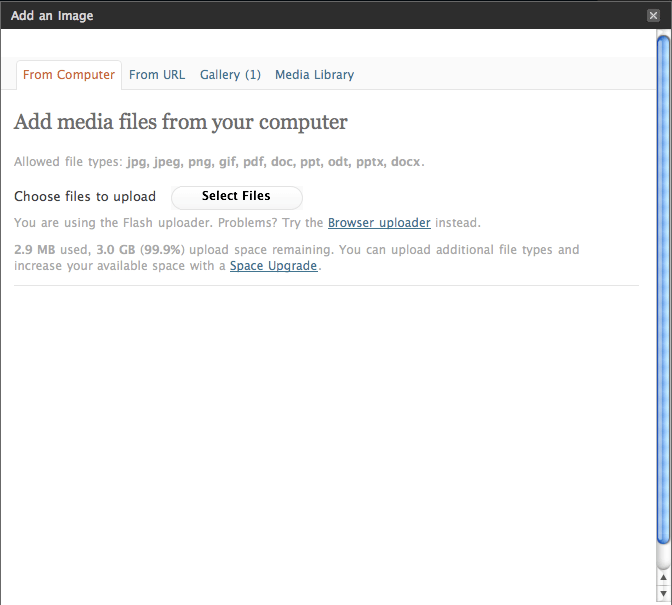
3) Now the file name will appear. You assume that because it is now shown on the page that it has been uploaded, but actually there is another 2 or 3 second delay before it is uploaded and the rest of the form appears. During this delay I often find myself automatically pressing the ‘Select Files’ button again to (obviously) select the file I thought I’d just uploaded. Fail! This takes you back to the upload dialogue.

4) The form appears. I have learnt that it isn’t necessary to complete all the many fields it presents you with so often I do just skip these. Then I automatically click the big button at the bottom which I assume is the final ‘yep that’s it I’m done, Save it’ but NOOOO this takes you to some library and doesn’t insert the picture! The big button at the bottom just conned you into doing the wrong action! Damn you WordPress! On other sites the bigger button at the end is always the final ‘I’m done’ button. Consistency please!
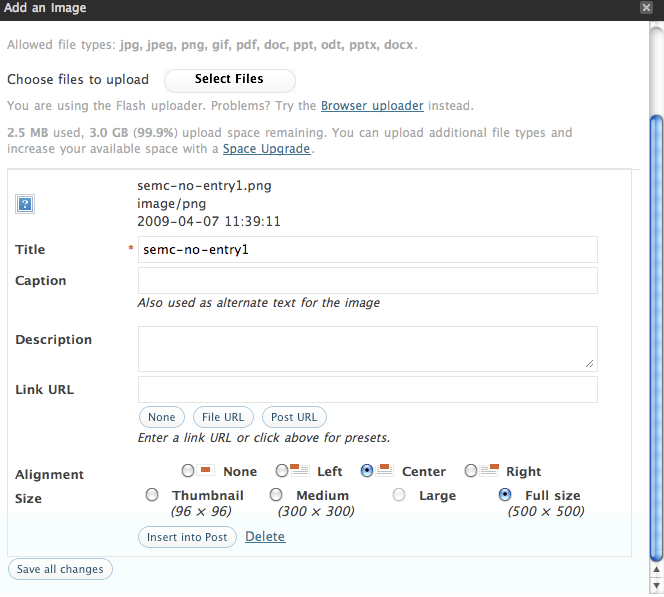
As you can see, the actual button you need to press is slightly higher up and is labelled ‘Insert into Post’. It’s position with the border of the upload box suggests it is an option and not a ‘DO’ button. Just in case you do find it, there is a nice ‘Delete’ link placed right next to it just to try and catch you out at that final moment. Even though I learnt this weeks ago, it is still catching me out. After just choosing to ‘Add an image’ into my post why would the main action be to Save it to my library? The big ‘PRESS ME’ button on this page should be to insert the picture.
Lesson learnt:
Think about what the user has pressed to initially carry out the task and ensure that you design for this task from start to end.
WordPress have tried to incorporate multiple actions (upload and insert) into the same dialogue and it doesn’t work. They assume that most users want to upload and not insert a picture. Thus they have chosen to give emphasis via placement to the ‘Save’ button. The end result is the user is caught out and frustrated. They may not even know why they went wrong which reflects badly on your site.
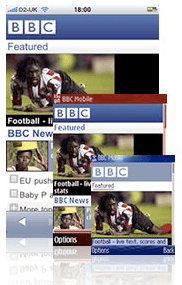
I’ve just found an excellent article and reference source for anyone interested in the complexities and issues when designing for multiple mobile screen sizes.
The guys at mobiForge.com have done an excellent job on this. I’m saving this as one my favourites 🙂
Click here to view the article
Today, thanks to the (not so) smartfilter being removed from my work laptop, I have been able to watch a great video on the new Palm Pre! Here are my first thoughts.
Hardware:
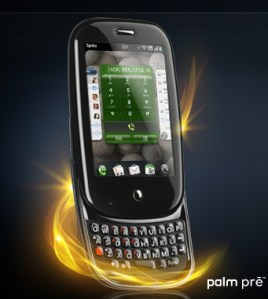
Pretty cool and sleek. Smaller than the iPhone with nice rounded edges. My guess is they have managed to keep the size down due to the 3mp camera (these are the major space eaters in mobiles). A capacitive touchscreen enables the use of gestures and multi-touch (ladies trim those fingernails if you want this phone). The slide-out qwerty keyboard distinguishes this from the iPhone giving peace of mind for those users who like tactile feedback and the reassurance of physical hardware keys. The phone has a slight curve to it when the slider is open, which palm have marketed as ergonomic… I would say it looks nice but to claim that it is ergonomic? hmm….
UI:
The UI is very familiar (think iPhone). They have tried to keep all options hidden away to maximise what you see on the screen and declutter the interface. So within contacts there is just one nice big onscreen button to press to add a contact. Then when you select a contact there is a big edit button. Nice. You get the idea.
Surprisingly there is no option to ‘Save’ anything. I understand their reasoning for this and they believe this is a fantastic benefit, however, I know from observations in my previous user studies that ‘Save’ is important to users. We once changed this word to ‘Done’ and just that slight change caused users no end of problems. Saving is more about positive confirmation and peace of mind. We have been brought up in a world where you have to Save everything you do on a computer or a mobile, so it actually goes against the users’ mental model to not save. It will be very interesting to see how learnable this is – can we let go of this need to Save easily?
Gestures and interaction:
Interaction with the phone requires a mixture of gestures and pressing the only key on the front of the phone (they call this the ‘Centre key’). It is in the exact same location as the iPhone’s home key and what do you think this button does? I’m guessing you’re thinking it must be the panic button that all phones have (AKA red/home key that takes you back to the home screen), the ‘argh! I’m lost, I’m off back to the beginning’ key. Well they have chosen to go against the industry standard and instead, use this key for multitasking. From what I can see on the demo, the only way to get back ‘Home’ is to use the back gesture. Alarm bells started to ring with me when the guy demonstrating this gesture says that to go back he flicks back “in the gesture area from right to left like I’m turning the page in a book”. Erm… hang on a minute…if you flick from right to left to turn a page you’re going forwards a page, not back to the previous page. It also feels easier and safer (more grip on the phone) to flick from left to right one-handed, using the thumb.
I quite like the swipe up gesture to get to the application menu. However, there is another swipe up gesture to get to your Wave dock (AKA Shortcuts) but with this gesture you have to make sure you drag slower and keep your finger on the screen until you have selected just underneath the item you want. This is quite a different interaction style to the rest of the phone as you aren’t selecting the item onscreen, rather, you are selecting just underneath the icon and it is when you lift your finger (deselect) that the selection activates (see the picture below, the white spot represents your finger). I think they may have been better combining the shortcuts with the application menu and visually make it clear that they are separate. Keep it simple guys. The Wave dock in action:

Other stuff:
Ok enough of the potential usability issues. Personally, I was really impressed with the Palm synergy functionality. This enables you to bring together all the information you have on a person from multiple places (Outlook, Facebook, Google) all into one place in your Contacts app. Simple!
The calendar has a small but cool feature that I liked. It compresses any empty space so that you can see for example an appointment you have at 9am and one at 7pm all on the same screen (assuming you have nothing inbetween).
The aggregated IM stuff sounds great, and how cool is it that you can start an IM chat with someone then when they go offline you can just change to texting them and it all shows in the same conversational messaging window!
To conclude, we must congratulate Mr Palm Pre for doing a really decent effort as an iPhone competitor. I’m still going to keep my fingers crossed for an iPhone Nano though. Please Mr Jobs… please…
 Lisa Duddington